Tutorial
Start Here - Watch or Read Below
This video spot is reserved for the finished walkthrough. Watch the video when it is added, or scroll down and follow the written tutorial instead.
The Boot Process
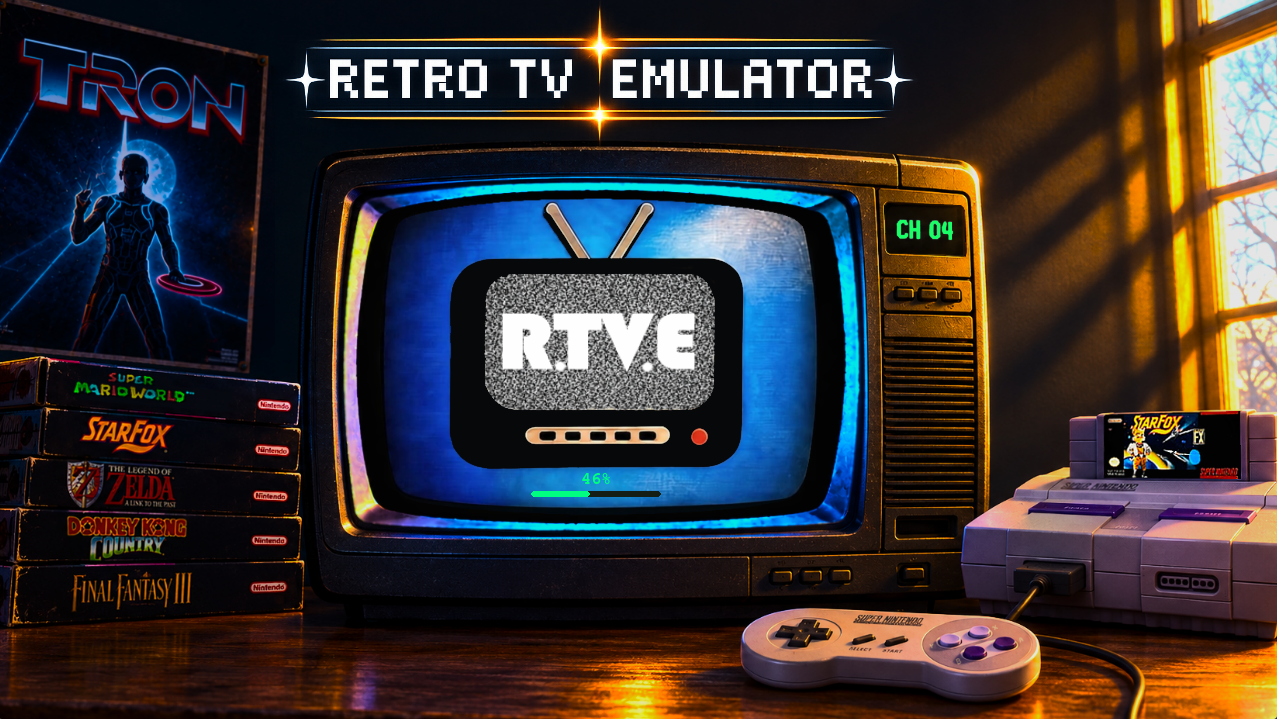
When Retro TV Emulator starts, it prepares the experience for your Windows computer. It wakes up your drives, caches tv guide and menu information. It scans your system and selects the proper amount of system cores, threads, and detects your best GPU when one is available. It places your computer on one of three performance modes (lite, standard, and performance) and reads your Windows screen resolution to choose the correct canvas size. The TV Guide layout also adjusts to that screen size so channel information stays readable.
The Controls Menu
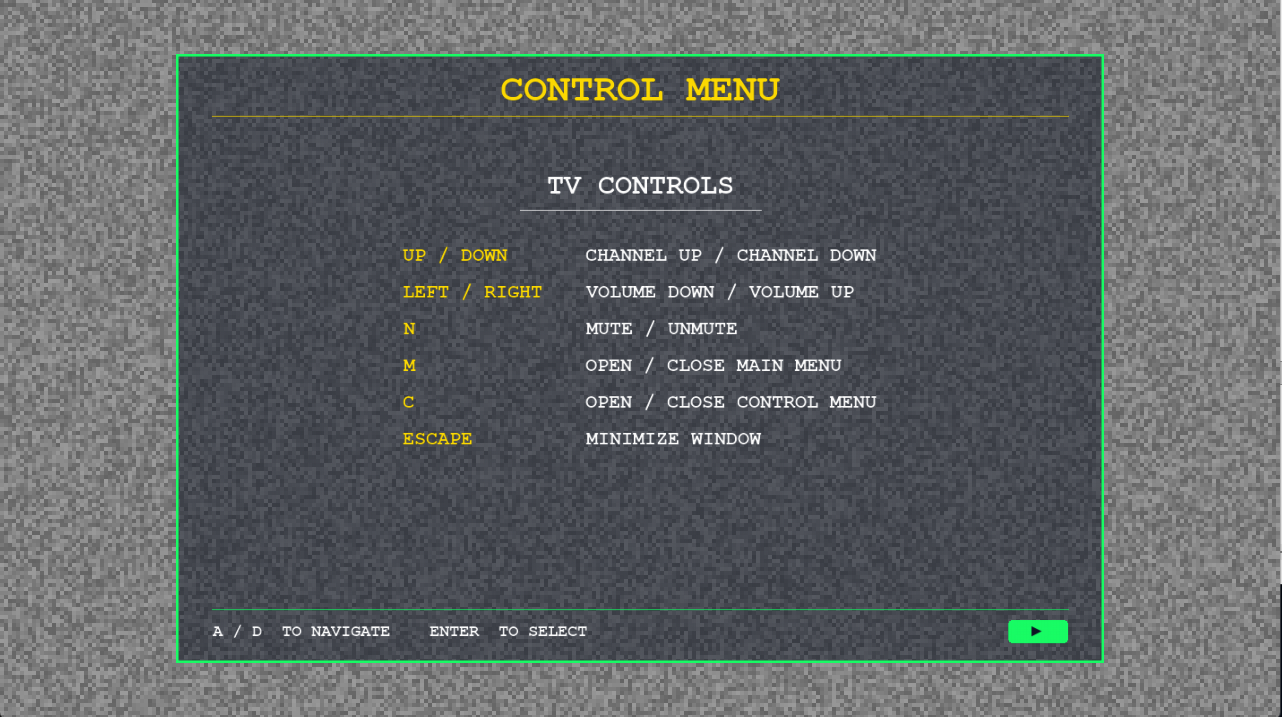
The Controls Menu is on by default. It is the first thing you see when the program loads. It can be turned off in the System Tab and can be brought up at any time with C. It will tell you the controls for each area of the program.
Set up your channels
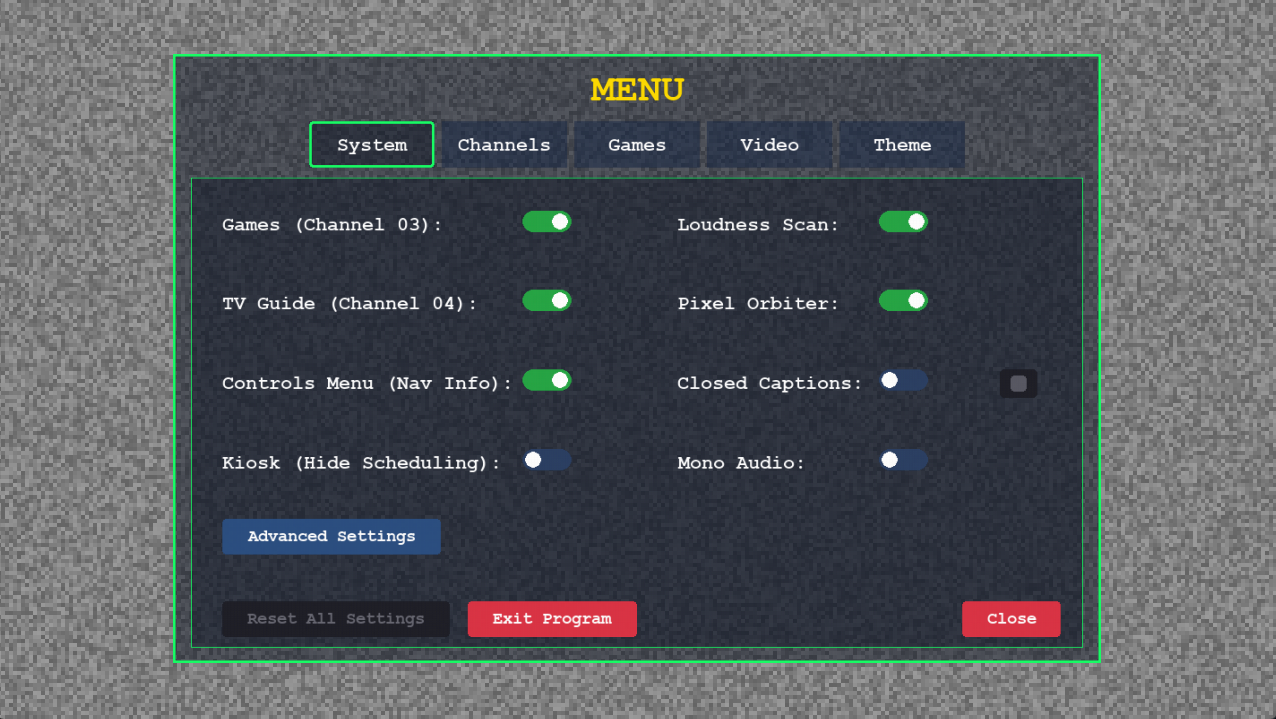
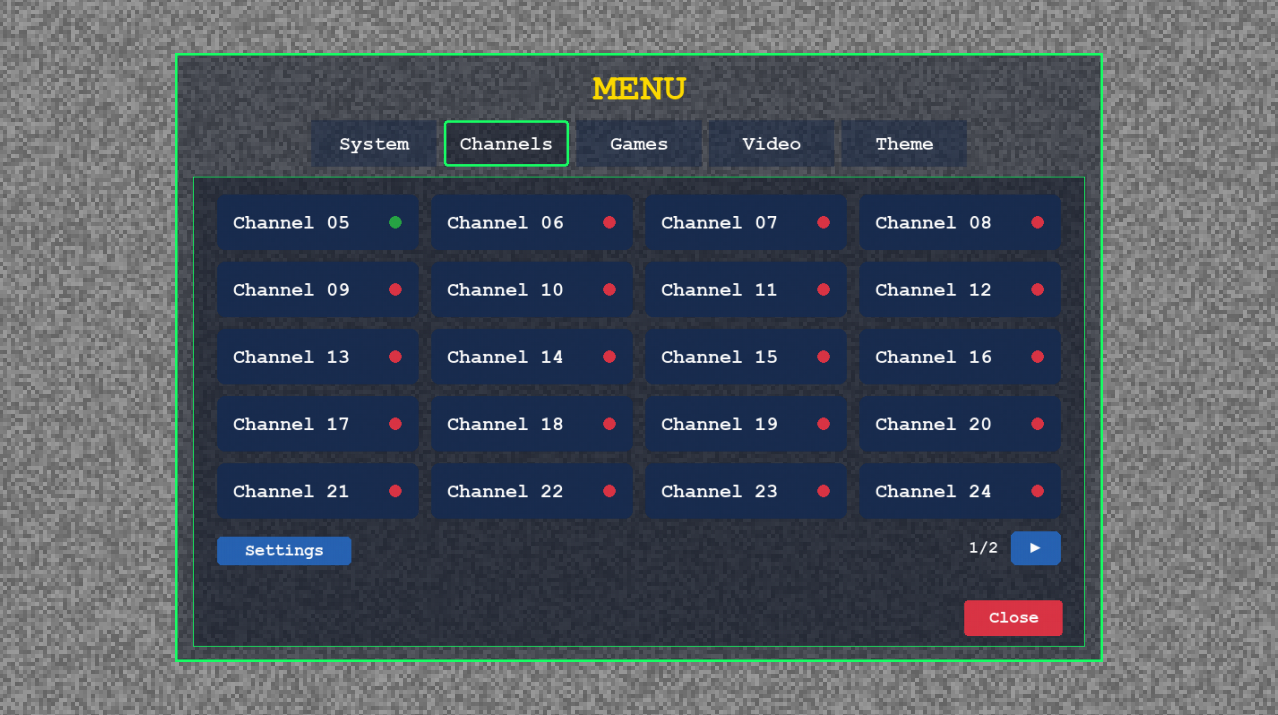
Open Settings with M and choose Channels. Channels 05–44 are your programmable stations. Turn a channel on, give it a name, and choose TV or MUSIC mode. TV mode plays your video folders on a schedule. MUSIC mode creates a visualizer station from an audio folder. Channel 03 is the Games and DVD deck, and Channel 04 is the TV Guide. A fresh install starts with Channel 05 active; enable a channel and add content before turning off the last active channel.
Schedule TV stations
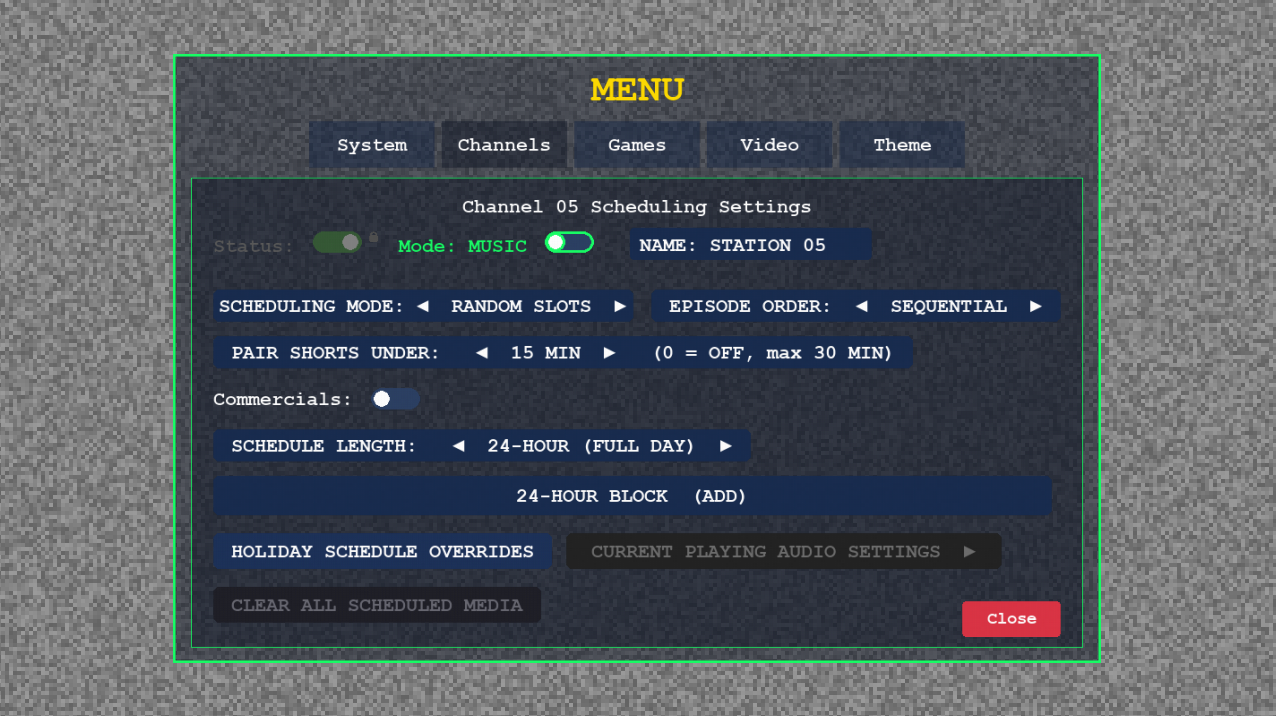
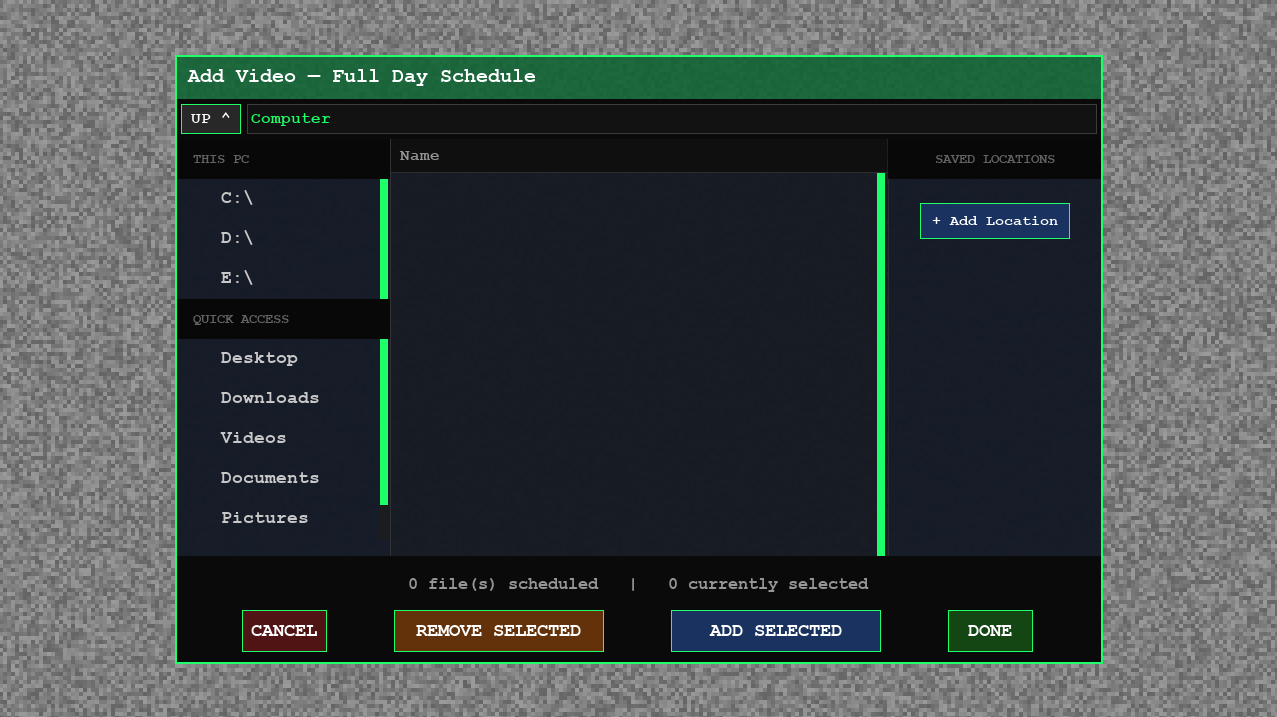
In a TV channel, choose the content folders and scheduling mode. Random Slots fills the day with scheduled content, One Slot and Two Slots give you a smaller daily lineup, and Marathon creates a continuous marathon-style channel. Use Pair Shorts Under to combine short episodes into a block. Episode Order can be Sequential or Random. Block Length can use a full 24-hour pool or separate 8-hour Morning, Evening, and Night folders. You can also add commercials, intros, outros, and holiday schedule overrides. Long files are automatically treated as movies when they are over about 80 minutes.
Use MUSIC Visualizer Channels
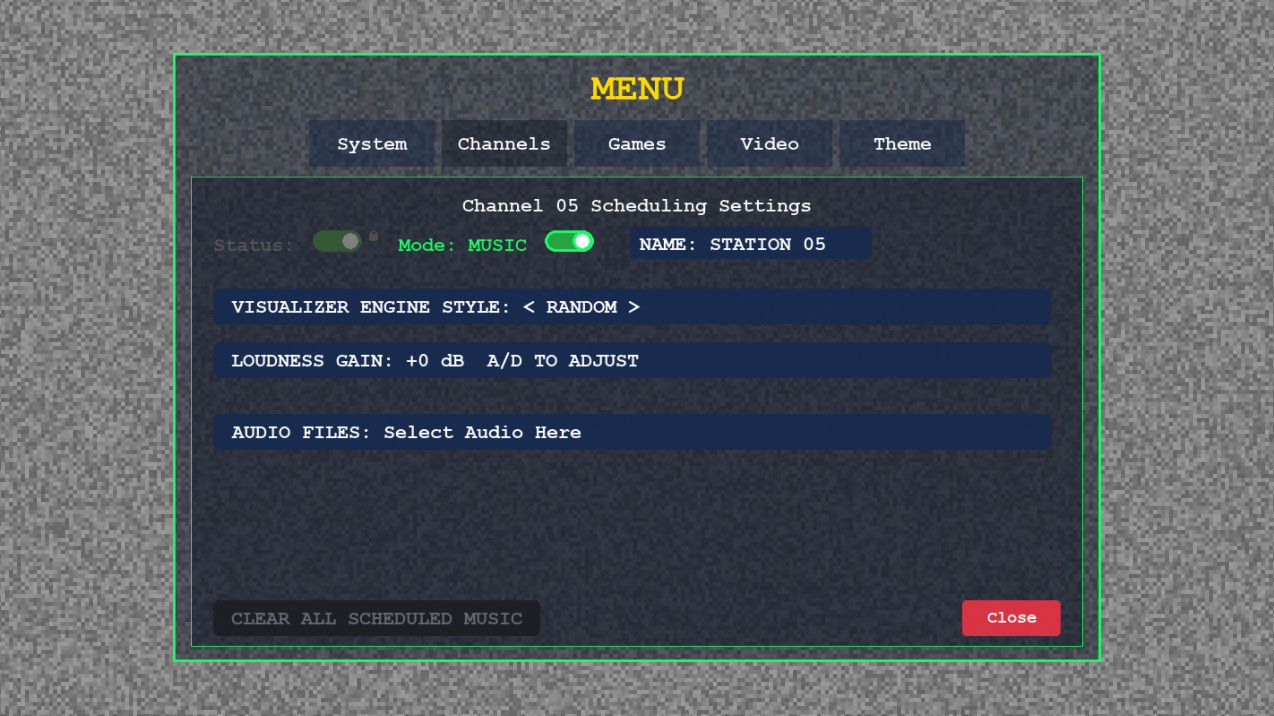
MUSIC channels are different from TV stations: they play audio and show an audio-reactive visualizer instead of scheduled video. Choose an engine style such as PrismShards, LiquidChrome, PulseRings, WarpTunnel, GlowBraid, EqualizerGrid, ParticleFlow, or NeonStarfield, then select the folder containing your music. Supported audio includes MP3, WAV, OGG, FLAC, M4A, AAC, and WMA.
Games, DVD, and Media Player
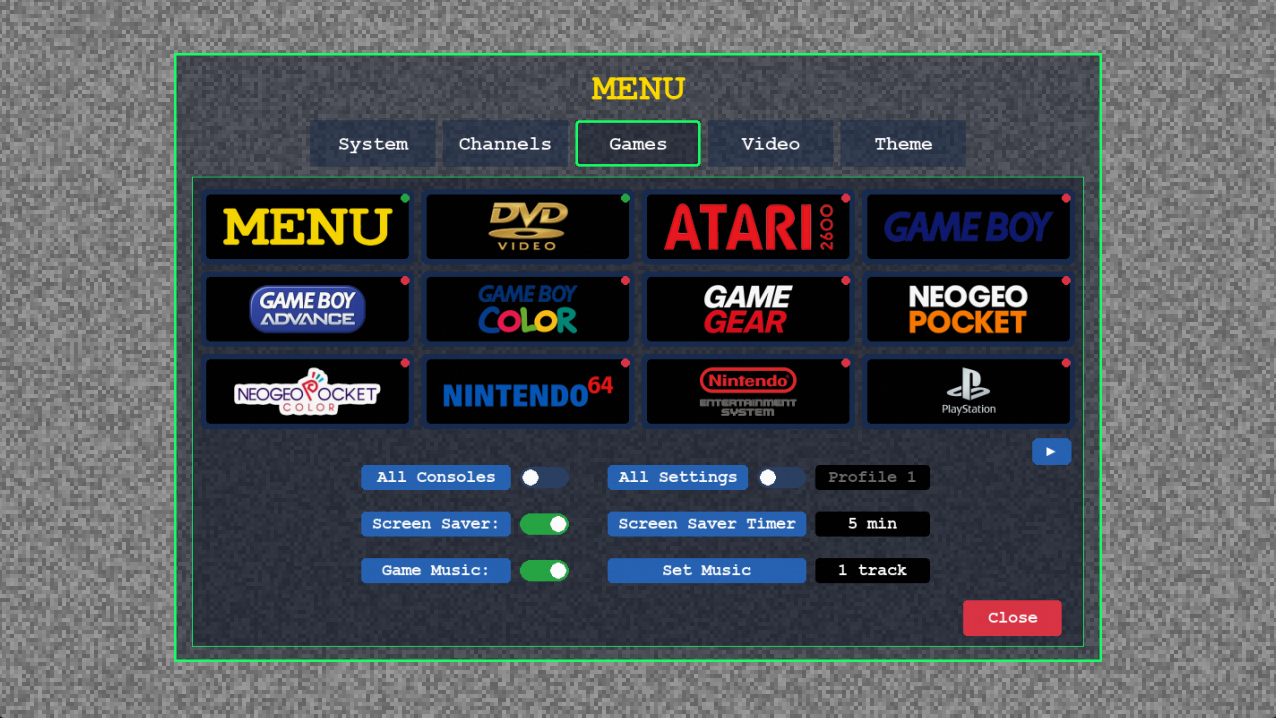
Channel 03 opens the Games deck. Add cores under main/cores/<CONSOLE>, games under main/roms/<CONSOLE>, and PSX BIOS files under main/bios. Select a console, choose its core if needed, set a save profile, and configure the controller. The DVD option is a media player for video files and discs; it does not need an emulator core, BIOS, or save profile. A controller is required for playing games, while keyboard controls navigate the Games menu and DVD player.
TV Guide and Everyday Controls
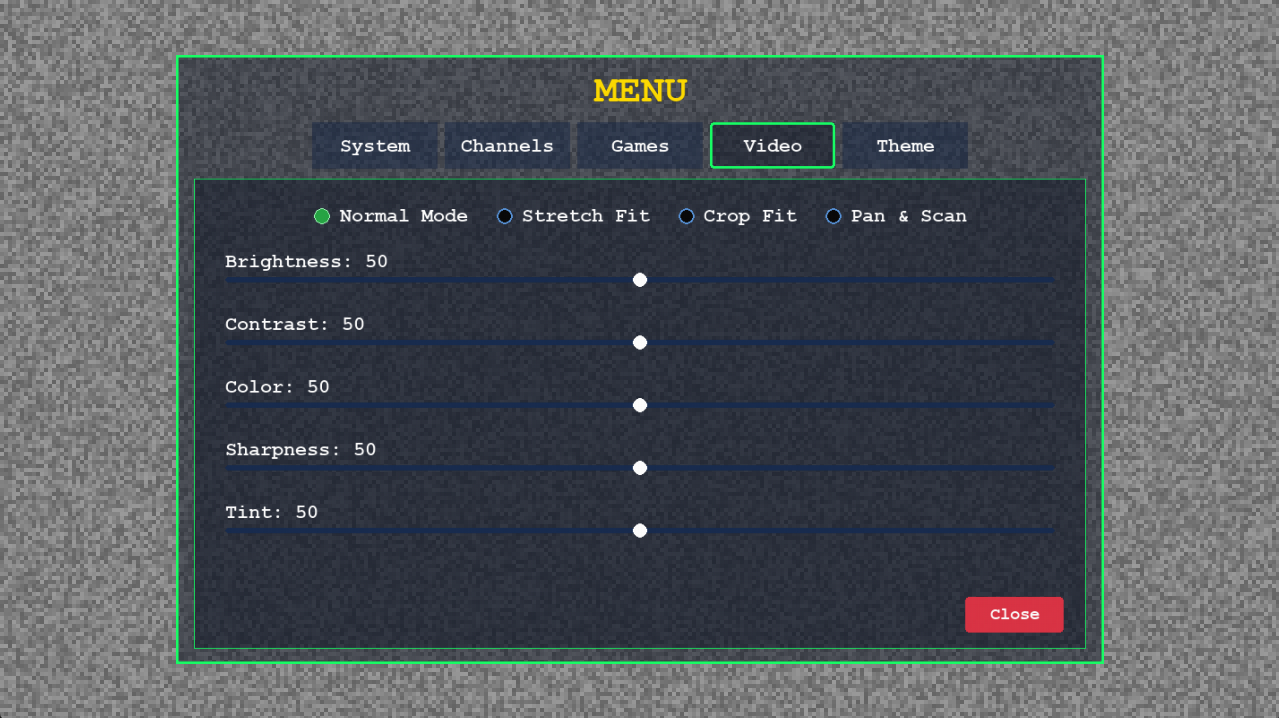
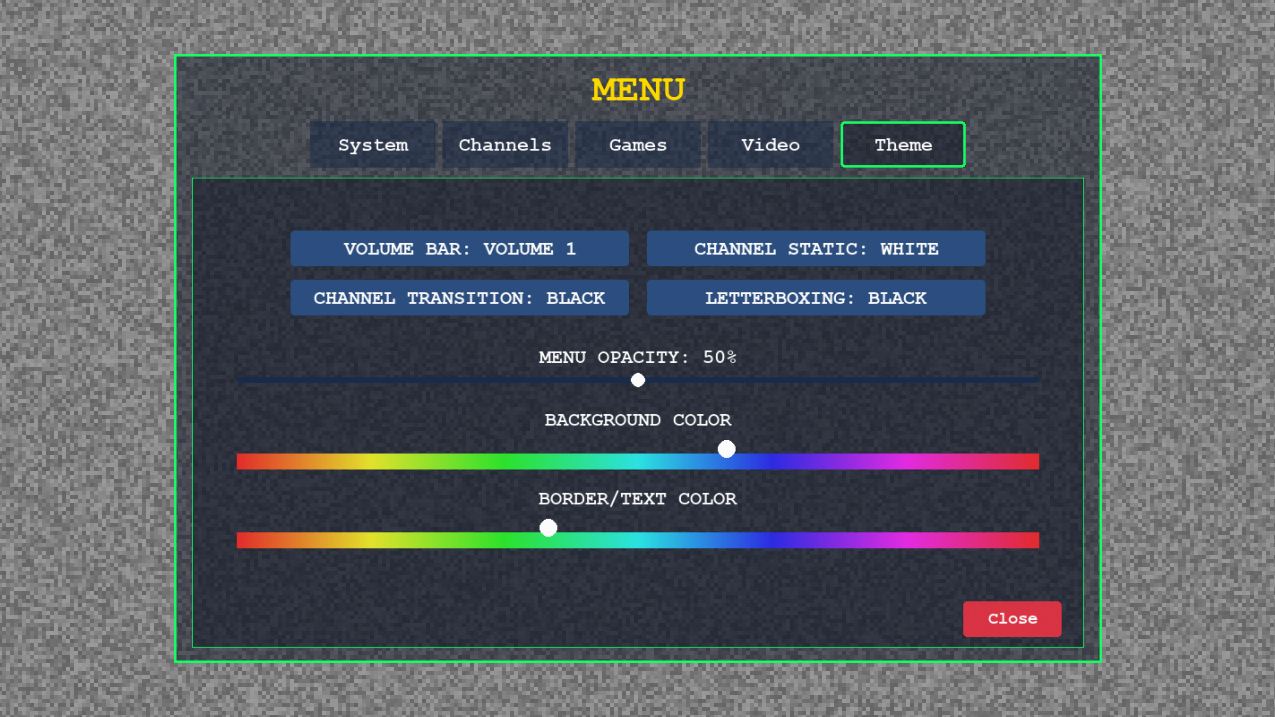

Channel 04 shows the schedule across your stations. Use W and S to move between channels, A and D to move through time slots, and Enter to tune to the selected channel. On any channel, Up and Down change channels, Left and Right adjust volume, N mutes, and two-digit channel numbers jump directly to a station. Press Escape to minimize the window.